
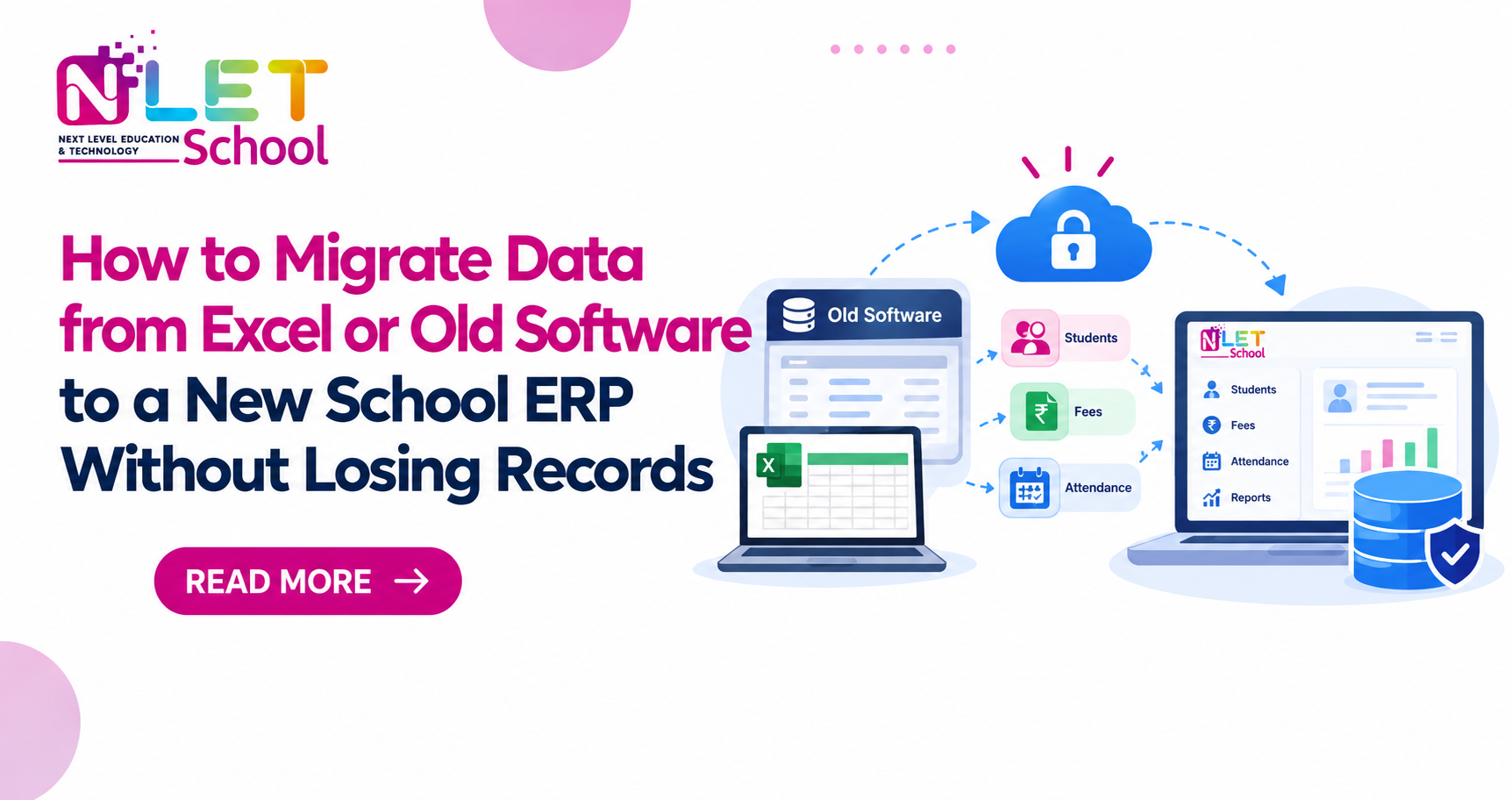
How to Migrate Data from Excel or Old Software to a New School ERP Without Losing Records
Every school has Excel files that have been used for years. The accountant has one file for fee payments. The admission office has another for student details. Teachers maintain marks and attendance records, while the transport department keeps a separate list of bus routes and students.
Some schools also use old software that was installed many years ago. It may still work, but finding records takes time, and managing everything has become difficult.
Now, the school wants to move to a new ERP system.
The principal may worry about losing student records. The accountant wants to make sure every fee payment is correct. Teachers don't want old marks and attendance records to disappear. Parents, meanwhile, expect the school to provide receipts, fee statements and transfer certificates whenever they need them.
These concerns are genuine. A small mistake during data migration can create problems that continue for months.
The good news is that moving data from Excel or old software to a new school ERP can be done safely with proper planning. You don't need to be a technical expert to manage the process. You just need to know what to check, what questions to ask your software provider and how to make sure the records are correct.
Let's understand the process step by step.
What Does Data Migration Mean for a School?
Data migration simply means moving information from your existing files or software into a new system.
For example, your school may have 1,500 student records in Excel. When you install a new school management system, you want those records to appear in the new software without entering every student's details again.
The same applies to fee records, examination marks, attendance, staff details and other school information. However, copying data isn't enough. The information must also be correct.
Imagine that a student has already paid ₹25,000 in fees, but the new ERP shows an outstanding amount of ₹25,000. The parent may receive an incorrect fee reminder, and the accounts team will have to investigate the mistake.
Or suppose a student studied in your school for six years, but the new system shows only the current class details. When the family asks for an old marksheet, nobody can find it. These are the kinds of problems that careful data migration helps prevent.
Step 1: Collect All Your School Records in One Place
- Before starting the migration, find out where your school's data is stored.
- Don't assume that everything is in one folder. In many schools, different departments maintain their own records, and some files may exist only on an individual staff member's computer.
- Start by speaking to the people who use these records every day.
- Your admission team can identify student registration files. The accounts department can provide fee ledgers and payment details. Teachers and examination coordinators can help collect marksheets and attendance records.
- You should also check the files used by the transport department, library, human resources team and other departments, depending on the modules your school plans to use.
- Pay attention to older records, too. A transfer certificate issued three years ago may not be needed every day, but the school may still need to retrieve it.
- For schools following CBSE, ICSE or State Board requirements, check which academic records, student details and examination documents must be retained. This may include previous examination results, List of Candidates (LOC) information where applicable, historical CCE grading records, transfer certificates and relevant student identifiers.
- The exact requirements depend on the board, the record type and the applicable rules.
- Make a list of all the files you find. Write down which department owns each file, which years it covers and whether the information is still used.
- This simple exercise can save a great deal of trouble later.
Step 2: Clean Your Excel Files Before Moving the Data
Many schools have been using the same Excel files for years. Different staff members may have added information in different ways, so the data isn't always consistent.
For example, one file may show a student's class as Class 5, another as Fifth Standard, and a third as V.
The names may also differ. One file might say "Aarav Sharma", while another says "Aarav K. Sharma". Sometimes the difference is only a spelling mistake. In other cases, the records may belong to two different students. These problems should be checked before the data is moved.
Ask the school staff to review the files and correct errors they can verify. Remove unnecessary spaces, use consistent date formats and make sure the information is entered in the correct columns.
If the student's name, father's name and mother's name are all written in one Excel cell, for example, the new ERP may require them to be entered separately.
Missing information needs attention as well. A blank field doesn't always mean that the information is zero or not applicable. The school may simply never have recorded it.
Never change an important record just to make the spreadsheet look neat. If a date, name or fee amount is unclear, ask the relevant department to verify it first.
Keep an untouched copy of the original files before making any changes. This gives the school something to refer to if a correction turns out to be wrong.
Step 3: Make Sure Every Student's Record Is Correct
- Every student should have a clear identity in the new ERP.
- This sounds obvious, but it can become complicated when the school has used different systems over the years.
- A student may have an admission number in the old software, a roll number in the examination register and a separate identifier in another file. These numbers may serve different purposes.
- The school must decide how these records will be matched in the new system.
- Whenever possible, retain the student's existing admission number if it is valid and unique. Keep other identifiers in their proper fields.
- Don't use a parent's mobile number as the main way to identify a student. Brothers and sisters often share the same phone number.
- For instance, if two siblings have the same parent's mobile number, the system must still maintain two separate student records. Their attendance, marks, fee payments and admission details should never get mixed up.
- Schools should also check student information connected with UDISE+ and the Permanent Education Number (PEN), where applicable. These identifiers must be handled according to the relevant requirements rather than changed to suit the software.
- Ask your ERP provider how the system handles duplicate records, former students and students whose admission details have changed.
- It's better to resolve these questions before migration begins.
Step 4: Check How the Old Data Will Fit Into the New ERP
- Your old software may store information differently from the new one.
- For example, an Excel sheet may have a column called "Fee Due". The new ERP may have separate fields for the opening balance, fees charged, concessions, payments and outstanding fees.
- The information needs to be matched correctly.
- This process is called data mapping. In simple terms, it means deciding where each piece of old information should go in the new system.
- Ask your software provider to prepare a field-mapping sheet. It should show the old column name, the new field where the information will be stored and any changes needed before import.
- Suppose the old spreadsheet records a student as "VII-B". The new ERP may need Class VII and Section B in separate fields. The school and vendor must agree on how to split this information.
- Some old records may not fit into the new system directly. If that happens, ask whether the information can be stored in another field or kept in a searchable digital archive.
- Don't agree to leave information behind without understanding what will happen to it.
- You should also ask for an import report showing which records were accepted and which ones failed. This helps staff identify missing information before the new system goes live.
Step 5: Pay Special Attention to Fee Records
If there's one area where mistakes can quickly lead to complaints, it's the accounts department.
Think about a normal school day in April. Parents are standing in queues, sometimes in 40-degree heat, with chequebooks and admission forms. The fee cashier is entering payments, issuing receipts and balancing the ledger before evening tea.
Now imagine that the school has moved to a new ERP, and a parent who has already paid the full amount receives a message saying that fees are still due.
It's an uncomfortable situation for everyone.
To avoid this, the accounts team must check the fee records carefully before approving the migration.
First, prepare a final report from the old software showing the fees charged, payments received, concessions, refunds and outstanding amounts up to an agreed date.
Next, compare these figures with the records that will be moved into the new ERP.
Pay attention to students who have unpaid fees, advance payments, scholarships, fee concessions or refundable deposits. These cases may need special treatment.
For example, if the old system shows that the school is owed ₹12 lakh but the new ERP shows ₹11.65 lakh, don't simply change the figures to make them match.
Find out where the ₹35,000 difference came from. Some receipts may be missing. A concession may have been entered twice. A refund may not have been included in the report.
The accounts team should understand and approve every important difference before the new figures are accepted.
Old receipts also need attention. If the new ERP cannot import all historical transactions, ask the provider how staff will retrieve older receipts and payment details when parents request them.
Keep a backup of the original fee records, even after the migration is complete.
Step 6: Don't Lose Old Marks, Attendance or Transfer Certificates
Student records contain much more than names and contact details.
Schools may need to access examination results, attendance history, previous class details and transfer certificates years after the information was first recorded.
This is particularly important when a student has studied at the school for a long time.
Before moving academic records, check whether the new ERP can store the old examination details correctly.
A marksheet may include subject names, maximum marks, marks obtained, grades and remarks. If the new system uses different grading settings, simply importing the marks may not produce the correct result.
Compare a few old marksheets with the records shown in the new ERP. Include students who were absent for an examination, received an exemption or took a supplementary examination.
Attendance records need similar checks. If the old software uses P for Present, A for Absent and L for Leave, make sure the new system understands these entries correctly.
Former students should not disappear from the school's records just because they have left.
Keep their information according to the school's retention policy and applicable requirements. Mark them as inactive or withdrawn where appropriate, while making sure that authorised staff can still find their historical records.
This will help when a former student or parent requests an old marksheet or transfer certificate.
Step 7: Test the Migration Before Moving All the Records
Here's a simple rule: don't move the entire school's data without testing a small sample first.
Ask the vendor to import a limited set of records into a test environment, if one is available.
Choose students from different classes and admission years. Include students with outstanding fees, siblings sharing a parent's mobile number, former students and records with missing information. Then ask the staff who actually use the data to check it.
The accountant should verify fee balances and receipt details. The examination coordinator should compare old and new marksheets. The admission team should check student names, admission numbers and parent contact details.
Don't depend only on the vendor's assurance that the import has worked. Let your own staff open the records and compare them with the original files.
If errors appear, ask the provider to correct them and repeat the test.
Only move to the full migration once the school is satisfied with the results.
Step 8: Choose the Right Time for Migration
Timing matters more than many schools realise.
April is a busy month for admissions. July can bring another rush as students return after the summer break, late admissions are completed and class or transport arrangements change.
During these periods, school offices already have plenty to handle. Asking staff to learn new software while managing long queues of parents can make the transition much harder.
Whenever possible, plan the final migration around your school's calendar.
Before the changeover, agree on a cut-off date for the old system. Decide who will enter new admissions, fee payments and other transactions during the transition.
For example, if the old software is used until Friday evening, what happens to a fee payment received on Saturday morning?
The school needs a clear answer. Otherwise, that payment may be missed when the data is moved.
Take a fresh backup before the final import. Keep the old system available in read-only mode for an agreed period if the technical setup permits it.
Also ask the vendor what will happen if a serious problem appears after the new ERP goes live. The school should know how records can be recovered and how new transactions will be handled if the old process has to be restored temporarily.
Step 9: Check Everything After Migration
Once the data has been moved, don't assume that the work is finished.
Compare the number of records in the old system with the number in the new one.
If the old admission register contains 2,460 student records but the new system shows 2,451 active students, find out why. Some records may have been marked inactive or identified as duplicates, but the difference must be explained.
Check the total fee collections and outstanding balances as well.
Ask staff to search for actual records. Open an old receipt, find a former student, check a marksheet and look up a transfer certificate.
If your school uses bus GPS trackers, verify that the current student transport assignments and routes are correct. If you use biometric attendance devices, check whether the new ERP can connect to the existing equipment.
A thumb scanner and an AI-based facial recognition terminal may have different technical requirements. The school should confirm compatibility with the vendor rather than assume that every device will work automatically.
Parent communication needs a separate test, too. Check that SMS and WhatsApp alerts reach the correct numbers and that fee reminders show the right amounts.
SMS services in India may require registration and compliance with TRAI's Distributed Ledger Technology (DLT) framework. Registration fees and message charges vary by provider and arrangement. Similarly, Meta WhatsApp Business Platform charges depend on the message category, market and service provider.
Ask for current quotations instead of relying on old estimates. These communication costs are separate from the basic cost of school ERP software.
The school should approve the migration only after the important records have been checked and the major differences have been explained.
Step 10: Keep Student Data Safe
School records contain private information about children, parents and staff. This information must be protected during migration.
Don't send the entire student database through personal email accounts or informal messaging groups just because the vendor needs it quickly.
Use approved methods to transfer the files. Give access only to people who need the information for their work.
Ask the ERP provider where the data will be stored, who can access it and what happens to temporary copies after migration.
The school should also check user permissions. A fee cashier may need access to payment details, but that doesn't mean the cashier needs unrestricted access to every student and staff record.
Backups are equally important. Ask who is responsible for taking backups and how the data can be restored if something goes wrong.
It's worth testing the recovery process rather than assuming the backup will work when needed.
The school should also agree on how long old records and temporary migration files will be retained, in line with applicable requirements and its own policies.
Ready to Move to a New School ERP Without Losing Important Records?
Switching from Excel or old software to a new system doesn't have to be stressful. With NLET School, explore a school management system that can support your school's daily administrative needs. Find out how the right school management software can help your team manage student records, fee details, attendance and academic information more efficiently.
Book a free demo with NLET School today to discuss your school's requirements and take the next step towards a smoother ERP transition.
Frequently Asked Questions
1. Can we move Excel data directly into a school ERP?
Yes, many school ERP systems support data imports from Excel or CSV files. However, the files may need cleaning and formatting before they can be imported. Ask the vendor to test a small sample first so that mistakes can be corrected before the full migration.
2. Will we lose old fee receipts after changing software?
Not necessarily. It depends on whether the new system supports historical receipt imports. If it doesn't, the school may need to keep the old receipts in a secure digital archive. Make sure the accounts team can still find older payment details when parents request them.
3. How long does data migration take?
It depends on how much data the school has and how well the records are maintained. Clean Excel files are generally easier to move than several years of data spread across different software systems. Ask your vendor for a schedule that includes data cleaning, testing, corrections and final approval.
4. Should we move records of students who have left the school?
Yes, if those records need to be retained under the school's policies and applicable requirements. Former students may need old marksheets, admission details or transfer certificates. Their records can be marked inactive while remaining available to authorised staff.
5. Is it better to migrate during the admission season?
Usually, it's better to avoid the busiest admission periods if your school has that flexibility. April and July can be demanding months for office staff. Plan the migration when the school can spare enough time for testing, training and checking records.
6. What should we ask an ERP vendor before starting migration?
Ask which file formats are supported, how duplicate records are handled, whether historical fee and academic records can be imported, and how errors will be reported. Also clarify the cost, backup process, testing arrangements and support available after the new system goes live.
Final Thoughts
Changing school software can feel like a big task, especially when years of student records and fee information are involved.
But the process becomes easier when you take it one step at a time.
Collect the files, clean the data, check the fee balances and test a small sample before moving everything. Let the accounts and academic teams verify the records they use every day.
Most importantly, keep a backup of the original data.
A new ERP should make the school's work easier, not leave staff searching through old files to correct mistakes. If the records are handled properly from the beginning, your school can move to the new system with far greater confidence.